
First Steps
This tutorial explains how to display a video on a screen.
It’ll explain how to link boards or locations to a lalbox and how to assign a media to an item.
Prerequisite
- A Centiloc Board
- NFC Tags
- Your TenantID
- Having an account with user rights at least
First step is to find the lalbox you want to assign to boards or location. This is the setup of your lalbox environment.
- Connect to lalui using your configured account.
- Go to
LalBoxpage. - Find the
lalboxserial number.

PrerequisiteThe logic of association between board’s and lalbox screen rely on a single label.lalwith the lalbox serial as value.
One lalbox can be related to several boards and several locations. However, one board or location can only be assigned to one lalbox at a time.
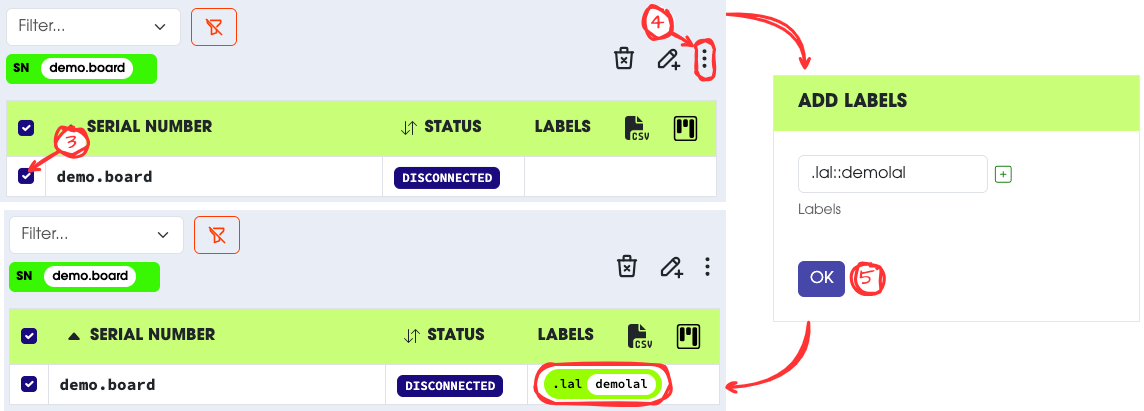
- Go to centui, and log in using your configured account.
- Go to
Boardpage. - Select the board you want to assign to the lalbox.
- Select
Add labelsin the action menu. - Add the label:
.lal::LALBOX_SN
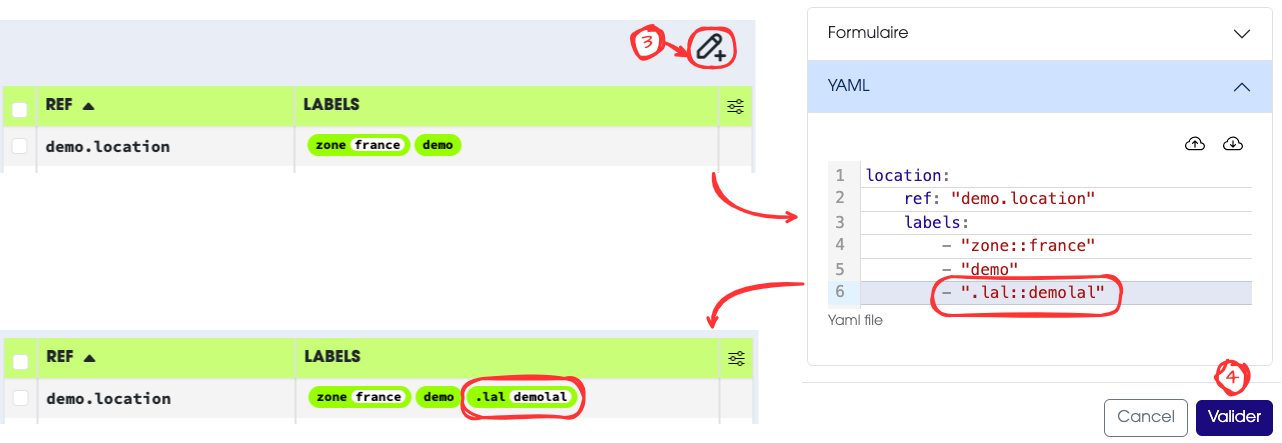
Now that your setup is configured, you need to configure the link between a product and a media.
You can assign a media to a product in two different ways. Both ways are described in this tutorial.
The final step is to link product to items. This is what will allow the system to trigger media display on item’s out event.
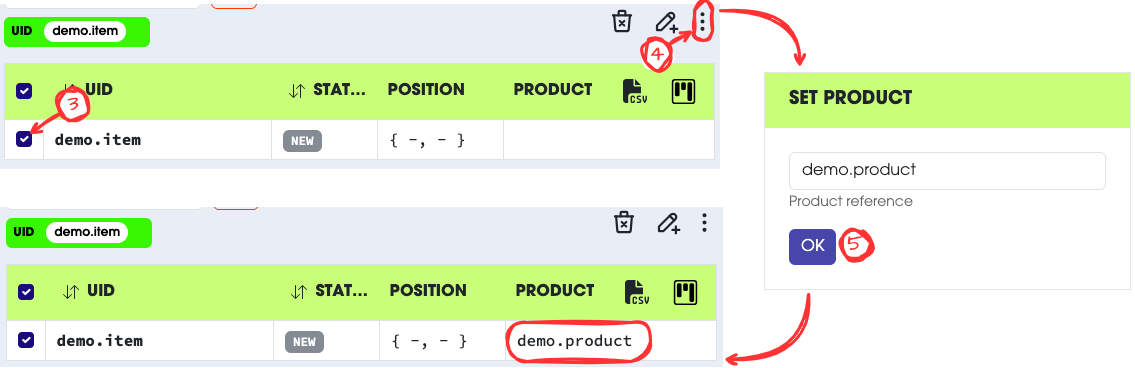
- Go to centui, and log in using your configured account.
- Go to
Itempage. - Select the item you want to assign a product to.
- Select
Set Productin the action menu. - Enter the product reference and save it.
EnrolmentsAnother way of linking product to items is by using the enrolment flow.
You are now ready to display your first media.
- Place the item on the board/location assigned to your lalbox.
- Take the item out of the board/location.
- The media should be displayed on the screen.
- Put back the item on the board/location.
- The media should stop.
InformationMedia are only triggered onoutevents from items. However, if the media is being displayed aninevent will stop the display.