
LED Box
The LED box is the hardware that will control your LED strips. It is the hardware part of Centiloc’s pick to light solution which aims to emphasize items placed on Centiloc’s CADS.
Once the box is supplied with power and connected to a network providing access to a Geocore platform, it can start working.
The box is physically connected to LED controllers through USB port and will control them to turn on / off LEDs segments on the LED strips.
ImportantThe USB port on which the LED controllers are plugged in is very important.
Please respect delivery instructions for connection.
This tutorial shows how to get a first feedback on a freshly received LED box.
Prerequisite
- A LED box
- Your TenantID
- Having an account with editor rights at least
Your first Centui connection is described in previous section.
Let’s browse to https://demo.centui.centiloc.com, and log with your configured account.
Go to LedBox page. You will end up on the page with all your LED boxes.
If you have multiple reference in your list, you case use filters to select only some led box.
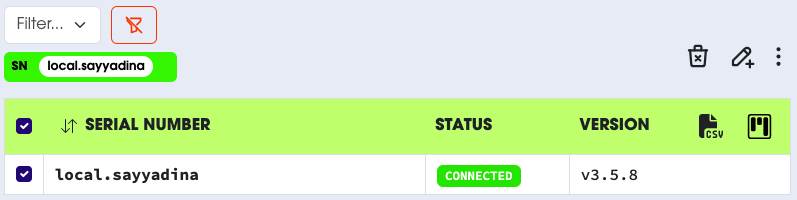
Click Filter…, choose SN, then enter your LED box’s Serial Number, then +.
The LED box must be connected to the internet.
To do so, please make sure it is connected to a network that allows internet access through the following ports: 8888 and 123
Connect the Ethernet cable from your network switch to the LED box device, then turn on the LED box.
After few seconds, (for a first connection, maybe 60 seconds), refresh your centui page.
You should see the LED box having a CONNECTED status.
Now that the LED box is connected, we can check the LED controller connection, making sure it is responsive.
- Click on the
infobutton to get LED box information. - This will display the information about LED controllers connected to the LED box. In this popup you can see that the LED box is connected to one XC720 Nexmopshere LED controller which controls two strips.
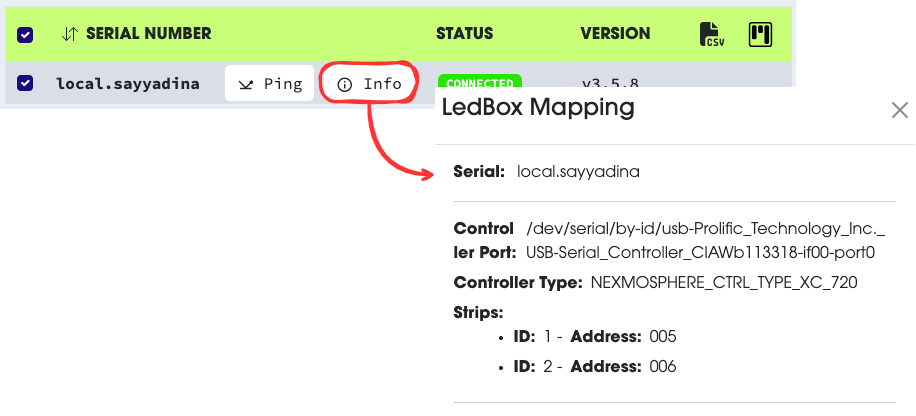
We need to make sure that the LED controller & strips are properly plugged in and configured.
- Select your LED box.
- Select
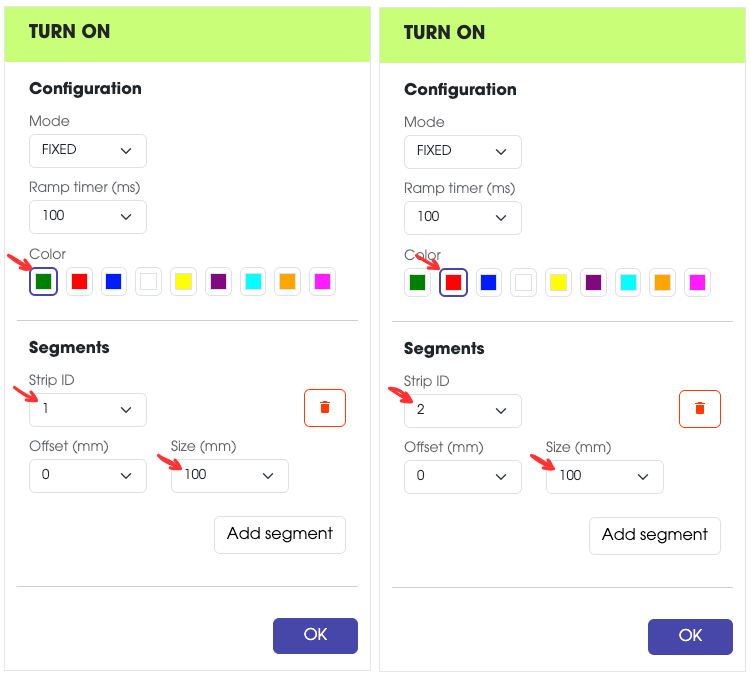
Turn Onin the action menu. - Turn on, one by one, a small segment on all your strips (found in check information).
In our example, we had two strips so we need to send two turn on command (one for each strip) and making sure to change the color.
Changing the color may help support to identify problems more easily.
TroubleshootingIf one or more of your strips do not turn on, please contact support.
To turn off all your strips, simply:
- Select your LED box.
- Select
Shutdownin the action menu. This will turn off all the strips.